

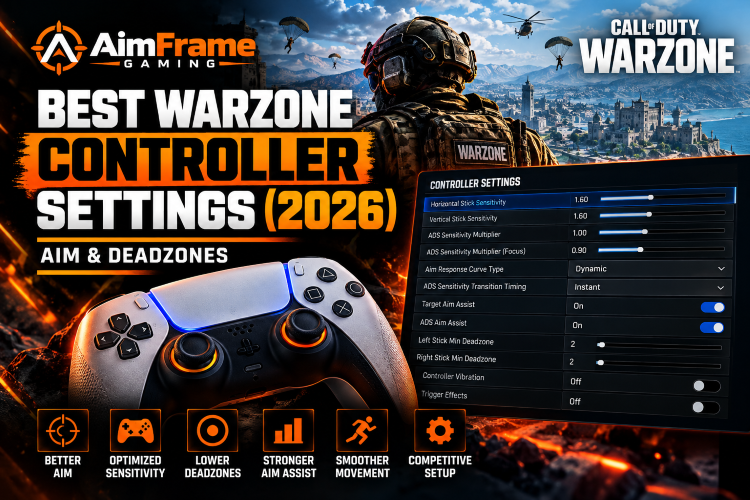
Use these Warzone controller settings in 2026 as a competitive starting point for sensitivity, aim assist, deadzones, response curve and movement. The goal is consistent aim and responsive controls—not copying another player's setup blindly.
Every controller is slightly different, especially when it comes to stick drift, so start with the baseline below and adjust one setting at a time.
Best Warzone Controller Settings 2026: Quick Setup
Start with:
Horizontal Stick Sensitivity: 1.60
Vertical Stick Sensitivity: 1.60
ADS Sensitivity Multiplier: 1.00
ADS Sensitivity Multiplier (Focus): 0.90
Aim Response Curve Type: Dynamic
ADS Sensitivity Transition Timing: Instant
Target Aim Assist: On
ADS Aim Assist: On
Controller Vibration: Off
Trigger Effects: Off
Button Layout: Tactical or your preferred paddle layout
Left Stick Minimum Deadzone: As low as possible without drift
Right Stick Minimum Deadzone: As low as possible without drift
Use these settings as a baseline rather than treating them as permanent values.
1. Best Warzone Sensitivity
Start with:
Horizontal Stick Sensitivity: 1.60
Vertical Stick Sensitivity: 1.60
The current Warzone sensitivity system uses the newer decimal scale rather than the old 6-6 or 7-7 style values.
A setting around 1.60 provides a useful balance between:
- Fast close-range turns
- Target switching
- Medium-range tracking
- Recoil control
- Small aiming corrections
If 1.60 feels too fast, try:
1.50
If it feels too slow, try:
1.70
Do not change your sensitivity after every bad match.
Play several matches before deciding whether a small adjustment is actually needed.
2. Best ADS Sensitivity
Start with:
ADS Sensitivity Multiplier: 1.00
and:
ADS Sensitivity Multiplier (Focus): 0.90
Keeping the main ADS multiplier at 1.00 gives you a predictable relationship between hip-fire and aiming.
The slightly lower Focus value can help with smaller precision adjustments.
If low-zoom optics still feel too fast, you can test a lower value such as:
0.85–0.90
Do not tune every scope separately at first.
Build a stable baseline before changing individual zoom levels.
3. Best Aim Response Curve
Use:
Aim Response Curve Type: Dynamic
Dynamic remains a strong competitive starting point because it provides responsive initial stick movement while still allowing controlled aiming corrections.
It can work well for:
- Close-range tracking
- Recoil control
- Fast target switching
- Small corrections while ADS
Give yourself time to adjust before switching curves.
Constantly moving between Dynamic, Standard and Linear makes it harder to build consistent muscle memory.
4. ADS Transition Timing
Start with:
ADS Sensitivity Transition Timing: Instant
This makes the sensitivity transition happen predictably when you aim down sights.
Consistency is more important than constantly experimenting with transition behavior.
5. Best Warzone Aim Assist Settings
Use:
Target Aim Assist: On
ADS Aim Assist: On
Aim assist is part of normal controller gameplay in Warzone.
However, current Warzone aim assist does not mean you can simply stop aiming and let the game track enemies for you.
Your own right-stick tracking matters.
The strongest results come from combining:
- Good centering
- Controlled right-stick movement
- Low but stable deadzones
- Consistent sensitivity
- Good positioning
Treat aim assist as assistance rather than automatic aiming.
6. Rotational Aim Assist in 2026
Warzone's current rotational aim-assist system expects useful right-stick tracking input.
That means you should actively track the enemy with your right stick rather than relying only on movement from the left stick.
If your right-stick movement is not tracking the target effectively, rotational assistance may be reduced.
This makes good stick control more important than trying to find a secret “maximum aim assist” setting.
Practice following the enemy's movement smoothly instead of making large, sudden corrections.
7. Best Deadzone Settings
Deadzone settings should be tuned to your individual controller.
Start by setting your minimum deadzones very low.
Then:
- Take your thumbs off the sticks.
- Watch for movement.
- If the stick moves by itself, raise that stick's minimum deadzone slightly.
- Test again.
- Stop once the unwanted drift disappears.
Your goal is:
The lowest deadzone that does not cause stick drift.
A lower deadzone can make the controller feel more responsive.
But setting it too low can cause unwanted camera or movement input.
8. Don't Copy Someone Else's Deadzones
Two identical controllers can have different levels of stick wear.
One controller may work perfectly with:
0 minimum deadzone
while another may need:
3, 5 or higher
to stop drift.
Do not increase both sticks just because one stick has a problem.
Adjust each stick individually.
9. Stick Maximum Deadzones
A practical starting point is:
Left Stick Max: around 80
Right Stick Max: around 99
A lower left-stick maximum can allow full movement input to register earlier.
Keeping the right-stick maximum close to its full range preserves a wide aiming range.
These values are starting points, not mandatory settings.
Test them in actual matches.
10. Trigger Deadzones
If your controller does not register unwanted trigger input, start with:
Left Trigger Deadzone: 0
Right Trigger Deadzone: 0
This allows aiming and firing to register quickly.
If the game detects trigger input while you are not touching the trigger, increase the affected deadzone slightly.
11. Turn Controller Vibration Off
For competitive play, use:
Controller Vibration: Off
If your controller supports trigger effects, also test:
Trigger Effects: Off
Vibration can add movement to your hands during fights.
Turning it off provides a more consistent physical feel while aiming and controlling recoil.
12. Best Button Layout
For players without rear paddles, a strong starting point is:
Button Layout: Tactical
Tactical can make crouching and sliding easier without constantly taking your thumb away from the aiming stick.
If you use a controller with rear paddles, your preferred layout may be different.
The best layout is the one that lets you:
- Jump
- Crouch
- Slide
- Reload
- Aim
without constantly losing control of the right stick.
Do not change layouts just because a professional player uses something different.
13. Controller With Paddles
If you use paddles, consider assigning important movement actions such as:
- Jump
- Crouch
- Slide
to rear buttons.
This allows your right thumb to remain on the aiming stick more often during gunfights.
Players with paddles may be comfortable staying on the Default button layout.
14. Movement Settings
Warzone's movement system changes between major updates, so avoid blindly copying an old settings video.
Focus on making actions such as:
- Sprinting
- Sliding
- Diving
- Crouching
- Jumping
- Mantling
- Reloading
- Interacting
feel predictable.
Do not enable every automatic movement option simply because it sounds faster.
Test movement settings in actual matches.
15. Don't Chase Maximum Aim Assist
There is no setting that automatically gives you perfect aim.
Good controller aim comes from combining:
Sensitivity
Deadzone
Response Curve
Right-Stick Tracking
Centering
Practice
A poor sensitivity or excessive stick drift can make aiming inconsistent even when aim assist is enabled.
16. How to Test Your Controller Settings
Do not judge your setup only in a firing range.
Test it during:
- Close-range fights
- Medium-range tracking
- Long-range recoil control
- Sliding engagements
- Indoor gunfights
- Target switching
- Moving targets
Pay attention to one problem at a time.
If you constantly overshoot enemies, your sensitivity may be too high.
If turning feels too slow, your sensitivity may be too low.
If your crosshair moves without touching the stick, increase the minimum deadzone slightly.
17. Change One Setting at a Time
Avoid changing:
- Sensitivity
- ADS multiplier
- Deadzones
- Response curve
- Button layout
- Movement settings
all at once.
Instead:
Change one setting → Play several matches → Evaluate → Keep or revert
This makes it much easier to understand which setting actually improved your gameplay.
18. Stick Drift Troubleshooting
If your aim moves without touching the right stick:
- Open the controller deadzone settings.
- Take your thumb completely off the stick.
- Watch the input.
- Increase Right Stick Minimum one step.
- Test again.
- Repeat until the movement stops.
Use the same process for the left stick if your character moves without input.
Do not immediately use a large deadzone.
Increase it only enough to remove the drift.
19. Sensitivity Too Fast?
If your aim feels twitchy:
Start by reducing:
1.60 → 1.50
Do not immediately lower every ADS and deadzone setting as well.
Test the sensitivity change first.
If hip-fire feels good but ADS still feels too fast, then adjust the ADS multiplier separately.
20. Sensitivity Too Slow?
If you struggle to turn quickly during close-range fights:
Try:
1.60 → 1.70
Make small changes.
Jumping directly from a controlled sensitivity to a very high value can hurt medium- and long-range accuracy.
21. Stable FPS Still Matters
Controller settings cannot fix unstable game performance.
If Warzone constantly stutters or your FPS changes dramatically during fights, aiming can feel inconsistent regardless of your sensitivity.
Make sure your complete setup also includes:
- Stable FPS
- Low system latency
- Completed shader preloading
- Reasonable CPU and GPU temperatures
- Correct graphics settings
- Stable internet
Controller optimization works best when the rest of the game is also running smoothly.
Best Warzone Controller Settings Quick Checklist
Use this as your starting point:
Horizontal Sensitivity: 1.60
Vertical Sensitivity: 1.60
ADS Sensitivity: 1.00
ADS Focus: 0.90
Aim Response Curve: Dynamic
ADS Transition: Instant
Target Aim Assist: On
ADS Aim Assist: On
Minimum Deadzones: Lowest value without drift
Controller Vibration: Off
Trigger Effects: Off
Button Layout: Tactical or preferred paddle layout
Then adjust only what actually causes a problem.
Related Warzone Optimization Guides
Best Warzone PC Settings (2026): High FPS & Low Input Lag
Best Warzone Graphics Settings (2026): FPS & Visibility
Best NVIDIA Control Panel Settings for Warzone (2026)
How to Fix Warzone Stuttering, FPS Drops & Freezing
How to Fix Warzone Packet Burst & High Latency
Warzone Stuck on Logging Into Online Services Fix (2026)
Want the Complete Warzone Setup?
The Warzone 2026 Performance Playbook brings the full optimization process together in one practical guide.
Inside you'll find:
✓ Windows 11 optimization
✓ NVIDIA settings
✓ Warzone graphics settings
✓ Controller settings
✓ Deadzone tuning
✓ Mouse optimization
✓ Input-lag optimization
✓ Visibility optimization
✓ FPS and stutter troubleshooting
✓ Network troubleshooting
✓ Gaming-laptop optimization
✓ OBS and TikTok Live optimization
✓ Complete performance checklist
Get the Warzone 2026 Performance Playbook — $9.99 →
About the Author
Emmanuel Obadiah is the founder of AimFrame Gaming, where he publishes practical Warzone settings, performance optimization and troubleshooting guides for PC, PS5 and Xbox players.